Hello Bankers,
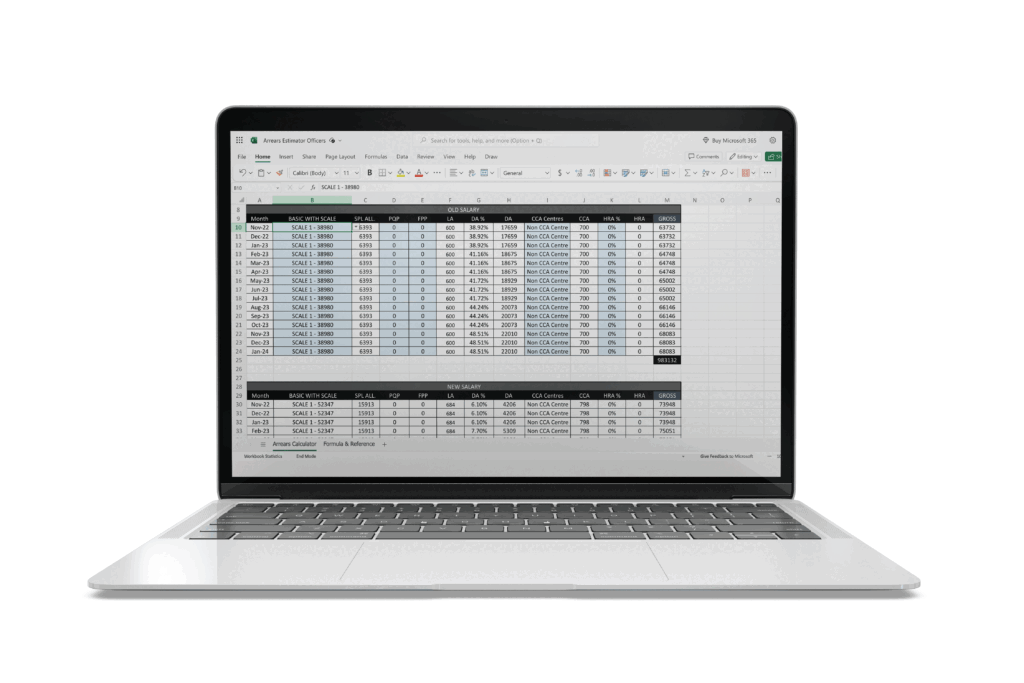
We would like to share with you a quick and easy arrears estimation tool that provides you with a month-by-month breakdown along with new Basic, special allowances, quarterly updated DA’s, and factoring everything that is known or expected at this point. To give you a reasonable estimate of your actual take-home, we have also made computations and provisions to include deductibles like PF/NPS, TDS, etc.
We are all still awaiting more details and the exact numbers from IBA and UFBU. Once those accurate figures become available, we will promptly update the tool. However, even with the information we currently have, this tool will provide you with a fairly close approximation to the actual figures that we can expect later.
Here is a step-by-step instruction along with follow-along videos on how to use this calculator. For assistance or feedback, you can email me at iamvarunnaik@gmail.com
Update: 21st December
Learning / Travel Allowances were not reflected on the Gross and DA of old salaries.I have fixed it now.
1. ARREARS ESTIMATOR FOR OFFICERS
ENTER BASIC SALARY
Click on cell B10. Pick your salary from the drop-down list available to you. The salary will automatically get updated for the entire period.
If you had a change in salary or retired from service in this period, you can click on the cell corresponding to the correct month and update your salary. All the cells underneath it will get updated on its own.
ENTER PQP AND FPP
You can ignore this step if it doesn’t apply to you. By default, the value is set to 0.
You can click on cell D10 to update PQP and cell E10 to update FPP from the drop-down list.
ENTER CCA Centres
Click on cell I10 (i10) to select whether you work in a non-CCA, lower, or higher area.CCA value will automatically get updated in column J.
ENTER HRA %
Click on cell K10. Select the HRA % applicable to you from the drop-down list below. HRA will automatically be calculated
THATS IT! ARREARS IS CALCULATED
On completion of the above steps correctly, you will find that all the tables are completely updated. Scroll down the page and you will be able to compare your old and new salary and find out your potential arrears and take home.
2.ARREARS ESTIMATOR FOR CLERICAL STAFF
ENTER BASIC SALARY
Click on cell B10. Pick your salary from the drop-down list available to you. The salary will automatically get updated for the entire period.
If you had a change in salary or retired from service in this period, you can click on the cell corresponding to the correct month and update your salary. All the cells underneath it will get updated on its own.
ENTER SPECIAL PAY
Click on cell D10. Select the special pay applicable to you.
ENTER PQP AND FPP
You can ignore this step if it doesn’t apply to you. By default, the value is set to 0.
You can click on cell E10 to update PQP and cell F10 to update FPP from the drop-down list.
TA, DA, and HRA will all get calculated on their own.
THATS IT! ARREARS IS CALCULATED
On completion of the above steps correctly, you will find that all the tables are completely updated. Scroll down the page and you will be able to compare your old and new salary and find out your potential arrears and take home.
3.ARREARS ESTIMATOR FOR SUB STAFF
ENTER BASIC SALARY
Click on cell B10. Pick your salary from the drop-down list available to you. The salary will automatically get updated for the entire period.
If you had a change in salary or retired from service in this period, you can click on the cell corresponding to the correct month and update your salary. All the cells underneath it will get updated on its own.
ENTER SPECIAL PAY
Click on cell D10. Select the special pay applicable to you.
ENTER PQP AND FPP
You can ignore this step if it doesn’t apply to you. By default, the value is set to 0.
You can click on cell E10 to update PQP and cell F10 to update FPP from the drop-down list.
TA, DA, and HRA will all get calculated on their own.
THATS IT! ARREARS IS CALCULATED
On completion of the above steps correctly, you will find that all the tables are completely updated. Scroll down the page and you will be able to compare your old and new salary and find out your potential arrears and take home.